How to add Family members!
STEP 1
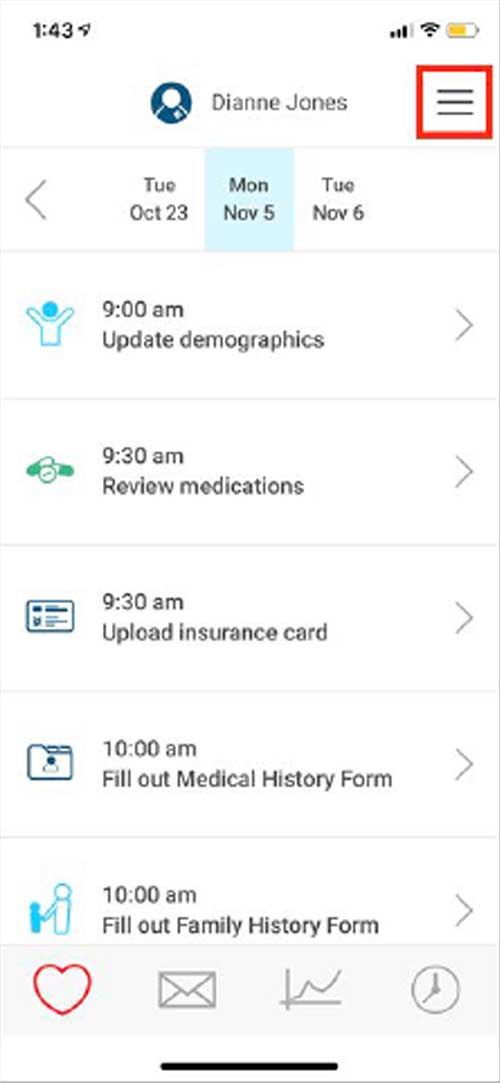
Please open up the menu in the upper-right corner of the screen.
STEP 2
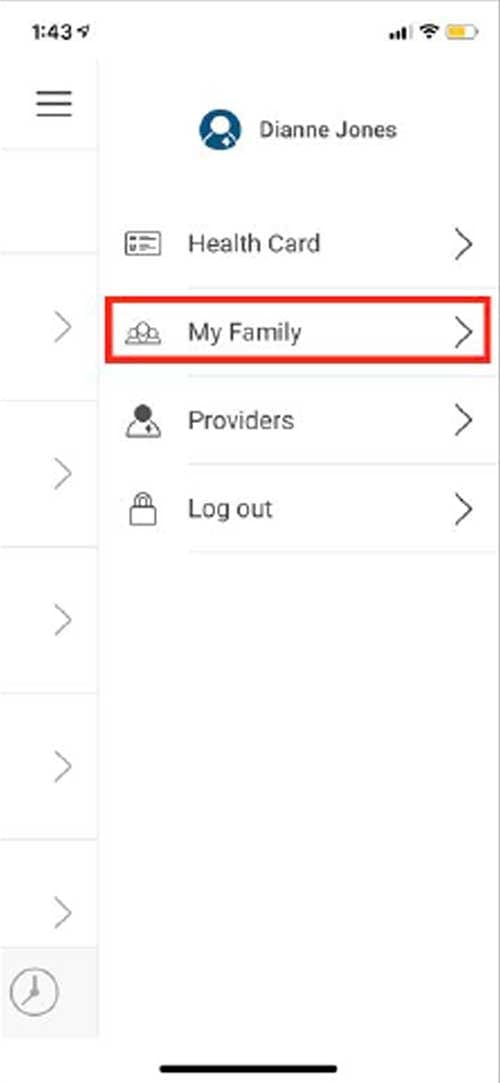
Then press "My Family" which is the 2nd option from the top.
STEP 3
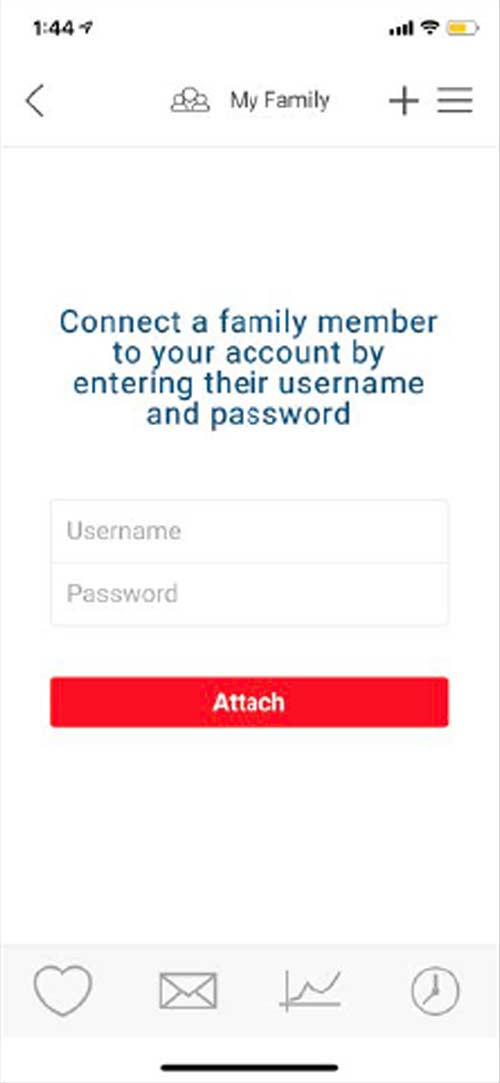
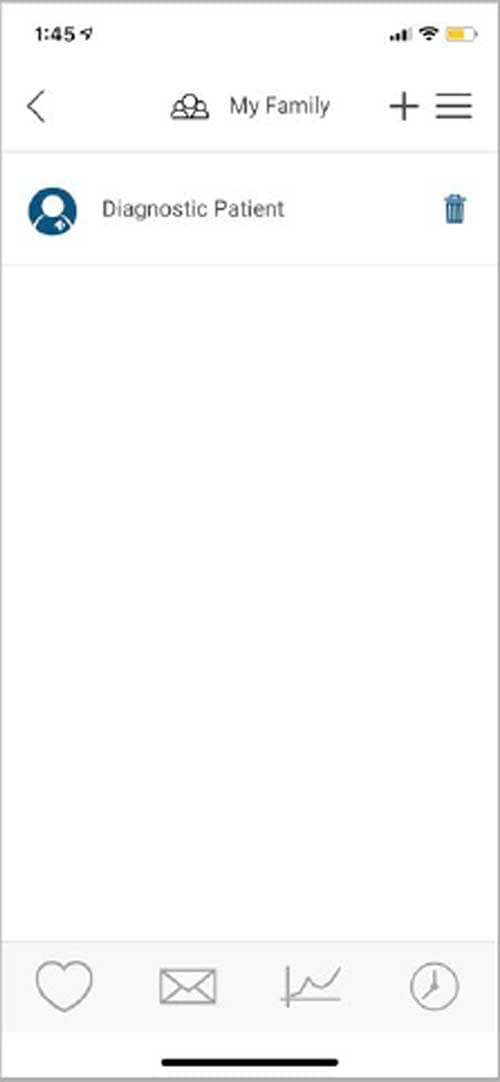
Press on the plus sign "+" in the upper-right corner to add family members.

STEP 4
Please open up the menu in the upper-right corner of the screen.
STEP 5
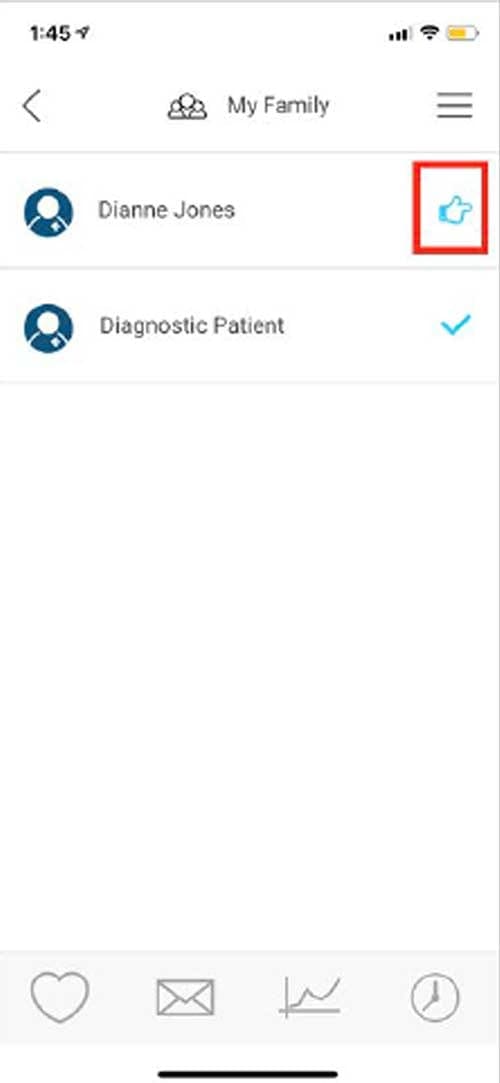
Once added, the family member will appear on the list. Select their name to be transferred to their account.
STEP 6
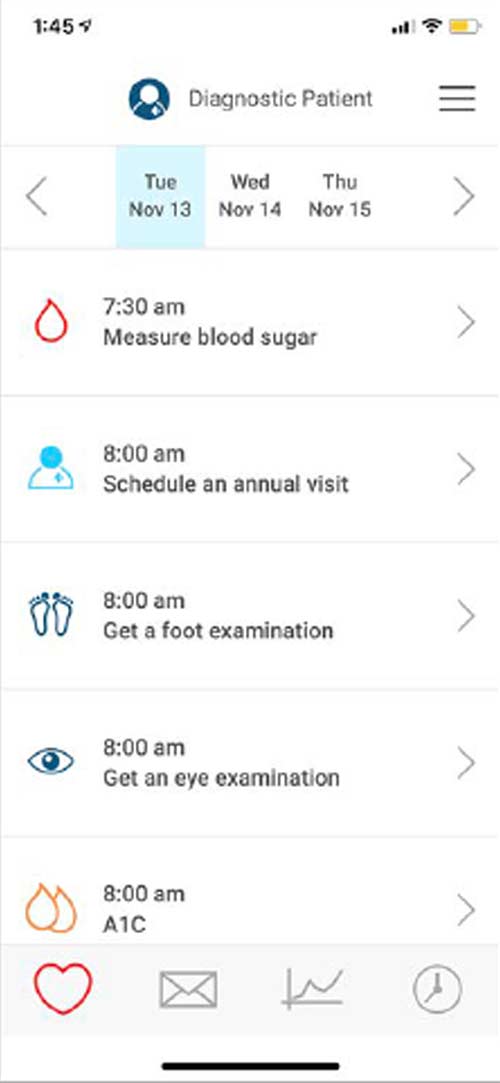
After pressing their name, you will be transferred to their care plan where you can view all of their tasks they need to complete
STEP 7
To return to the original patient account, open up the menu, press on "My Family" and then press on the name of the patient.